Create the scenes you want with ImgGenAI, an AI image generator

Type prompts or upload reference images to create product photos, social media graphics, and AI art. Review your selected model, aspect ratio, and estimated credit usage before submitting.

Supported AI modelsCheck credits before generationModel-specific settings

Prompt

AI Enhance
0/700

Try these examples

Simplified workflow

Write your idea, choose a style, and check the result

The image generation workflow starts with text, or by adding a reference image on supported models to guide the direction. You can check the model and credit cost before generating, then refine the results.

01 | Text to Image

An AI image generator that starts with a single sentence

Start creating product photos, banner drafts, and social media graphics from a single screen. Type the scene you want to make as if you were speaking naturally, check the aspect ratio, resolution, and quantity, then submit.

Prompt-driven generation
Aspect ratio and resolution selection
Check credits before generation
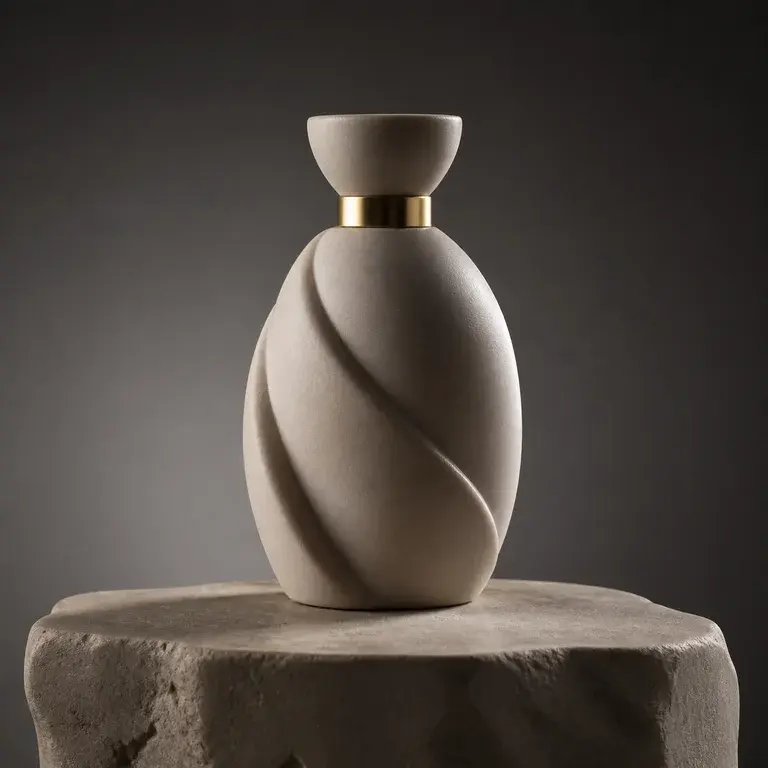
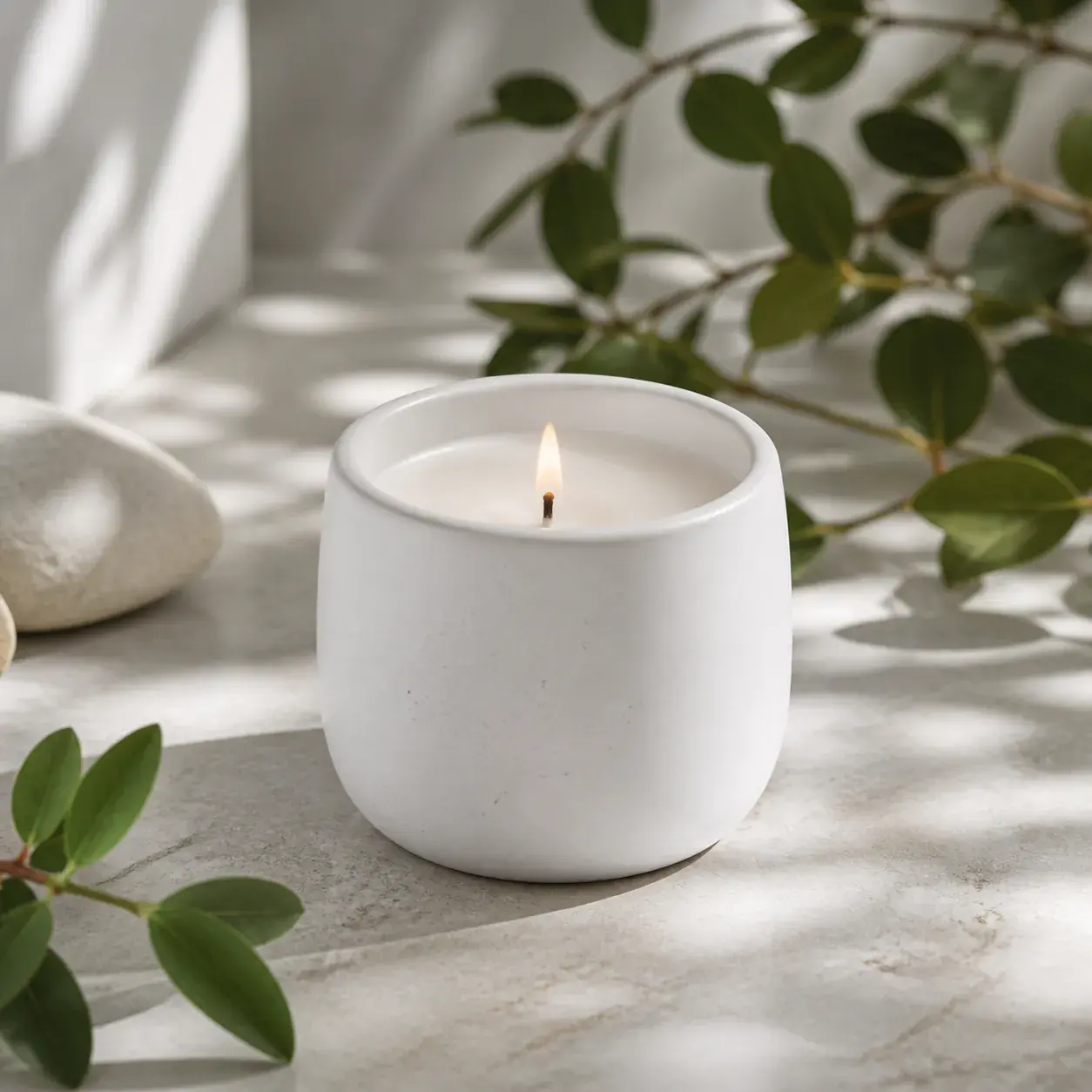
Public generated example of an unbranded ceramic product image
Public generation example | Product image

02 | Using Reference Images

When you want to maintain composition or mood

If you want to maintain the composition, character mood, or product context during your AI image generation workflow, try using a reference image. You can create a new image within what the selected model supports.

Upload reference image
Supported models indicated
Set direction before generating
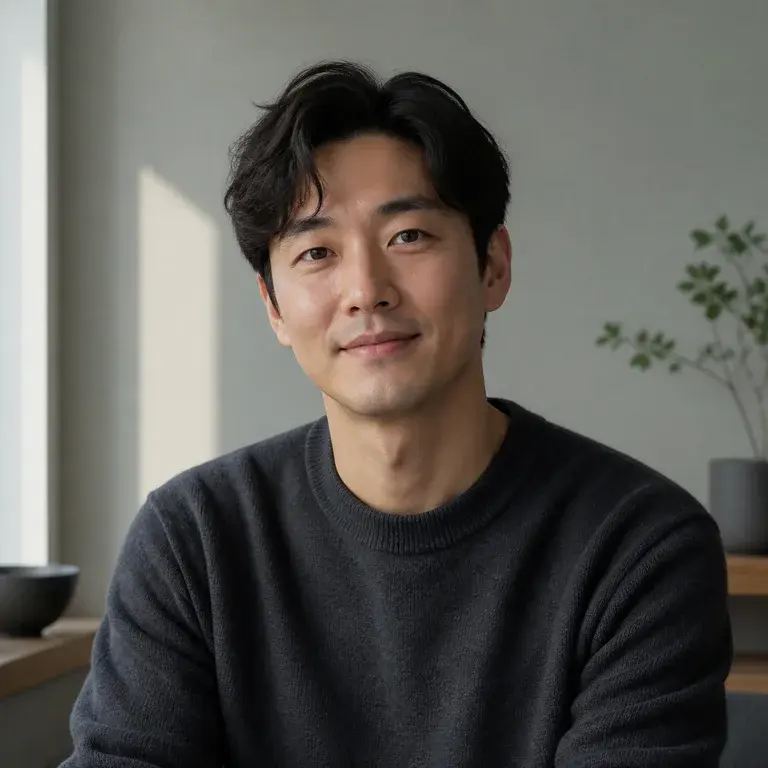
Public generated example of a natural editorial portrait image
Public generation example | Reference image usage

03 | Review and Retry

Review results and improve your next prompt

After checking the results, adjust the prompt for any missing details and try again. We provide a clear workflow to view the generation status and results on the same screen.

Review style and composition
Generation status display
Retry after reviewing results
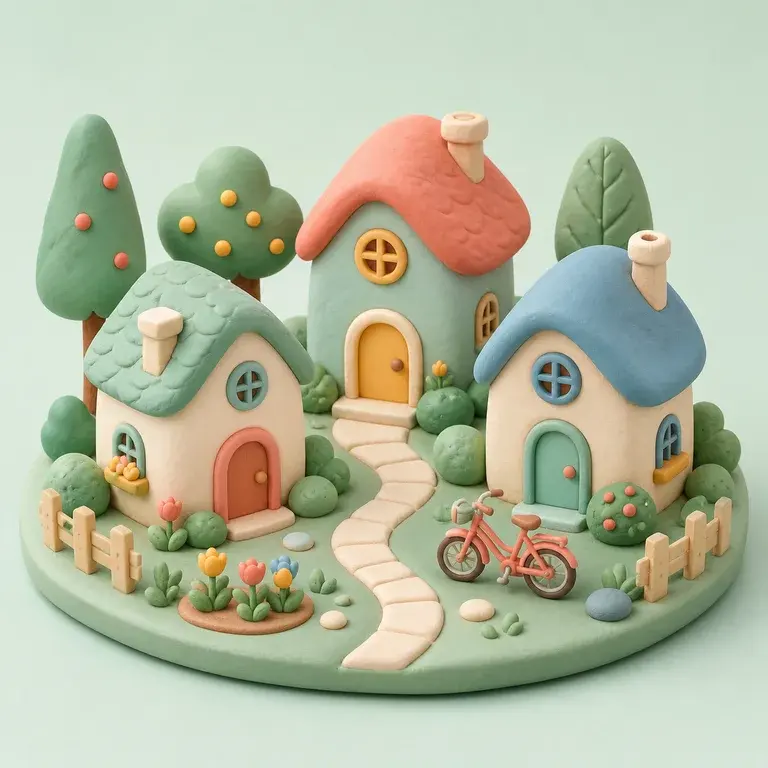
Public generated example of a soft clay miniature neighborhood
Public generation example | Style application

AI Image

Available AI image generator models

A list of models you can select in the workspace. Models currently being prepared are shown as pending.

Loading model catalog

Loading model catalog

Loading model catalog

When you need ideas

Refer to the examples below to see what kind of mood and prompts to start with.

Product Photo

Product Photo

White ceramic candle on pale stone, soft daylight, clean premium commercial photography.

Skincare Scene

Skincare Scene

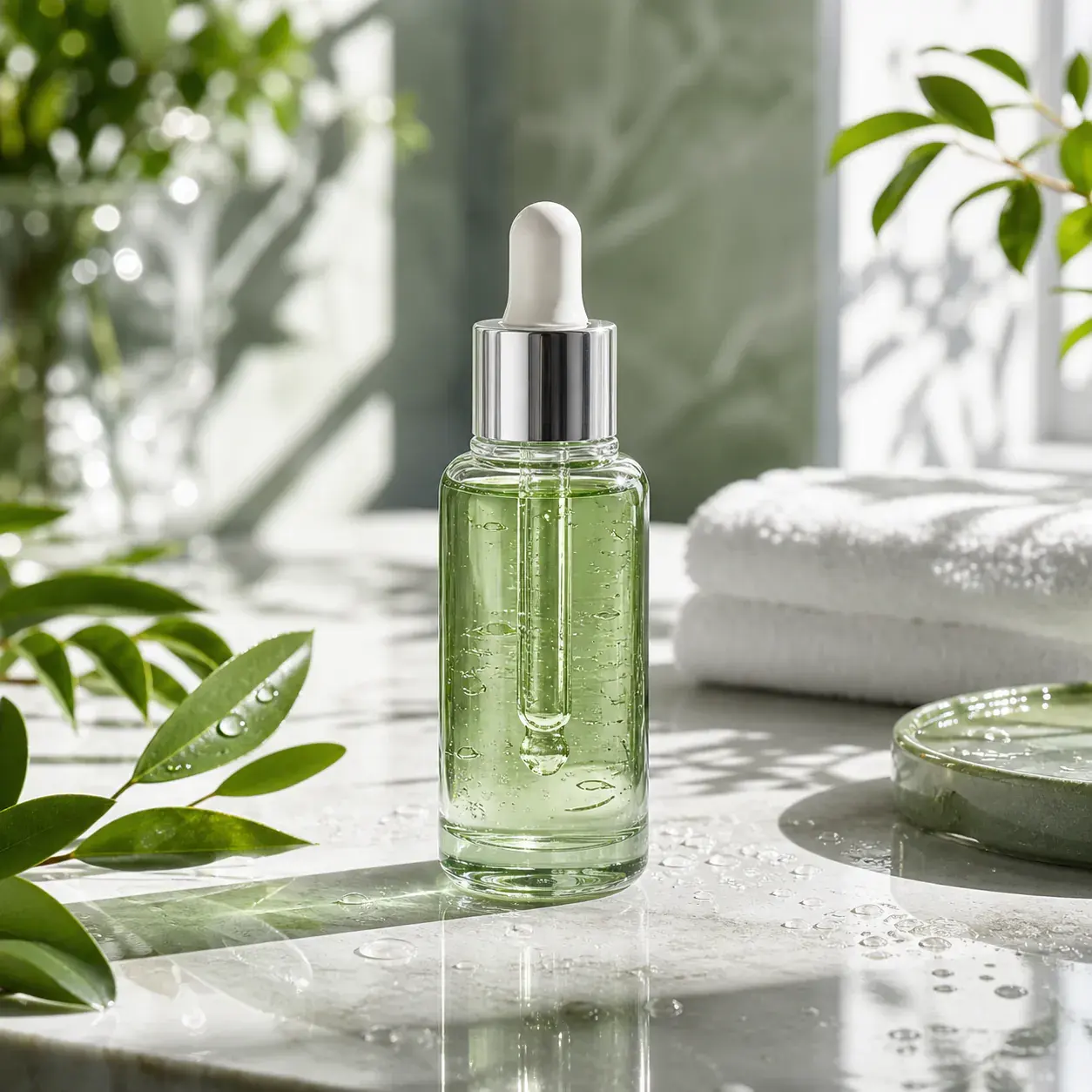
Fresh green serum bottle on stone counter, natural light, premium ecommerce campaign.

Food Social Post

Food Social Post

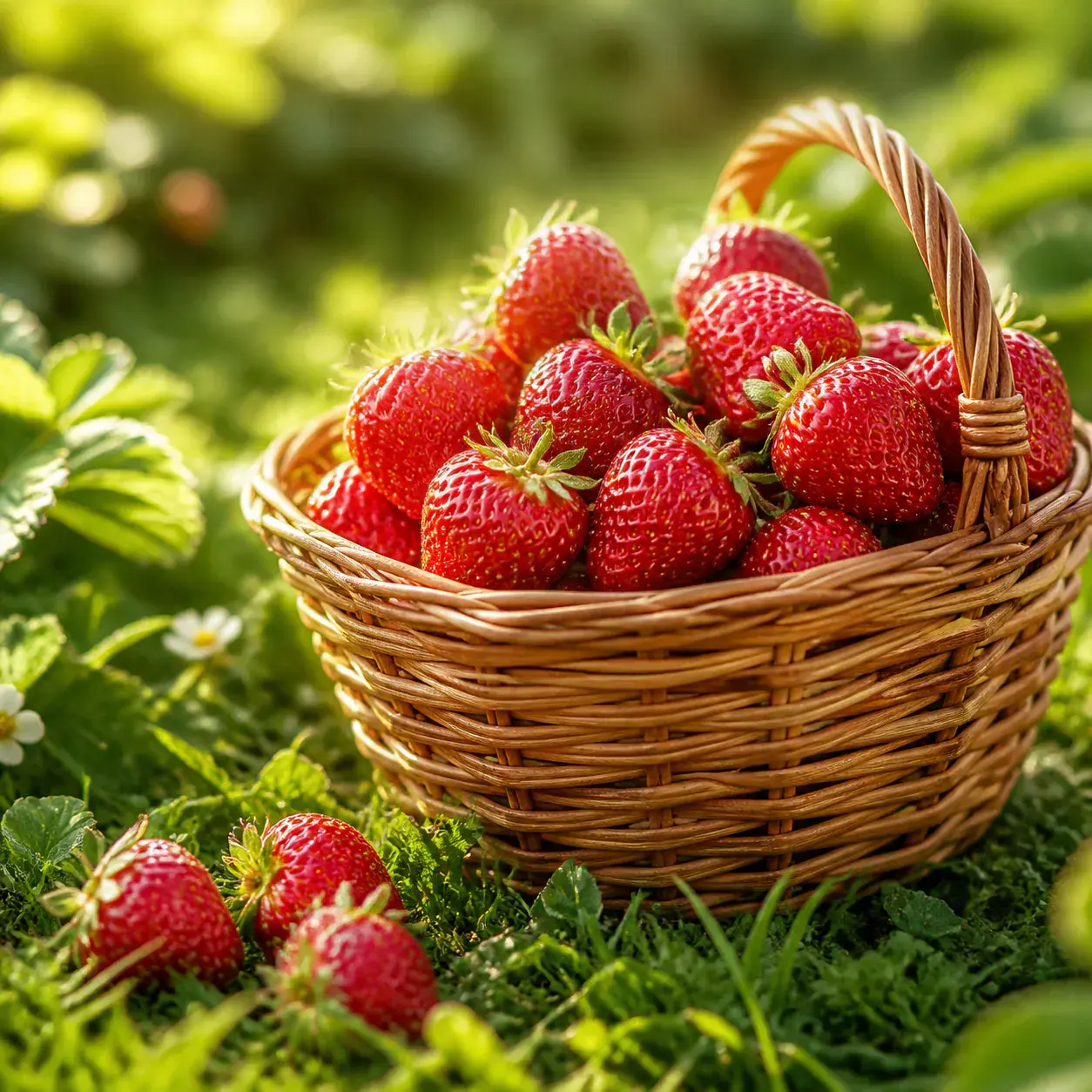
Fresh strawberries in a woven basket, warm daylight, cheerful food brand photography.

Natural Portrait

Natural Portrait

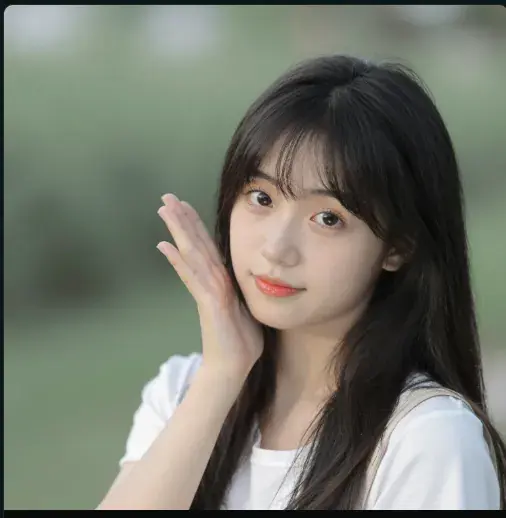
Soft natural-light portrait against a blurred green background.

Seoul Neon Night

Seoul Neon Night

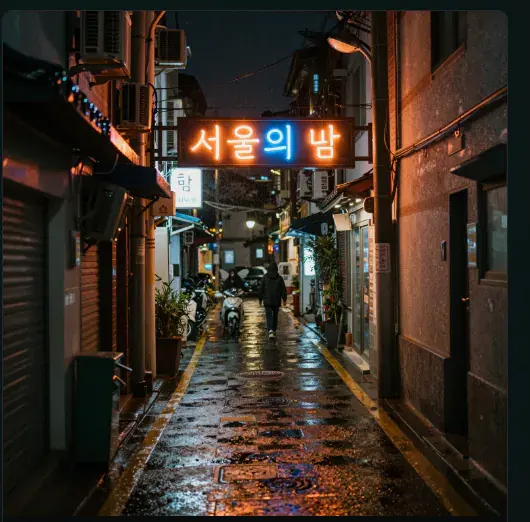
Rainy Seoul alley at night with neon signage and wet street reflections.

School Watercolor Scene

School Watercolor Scene

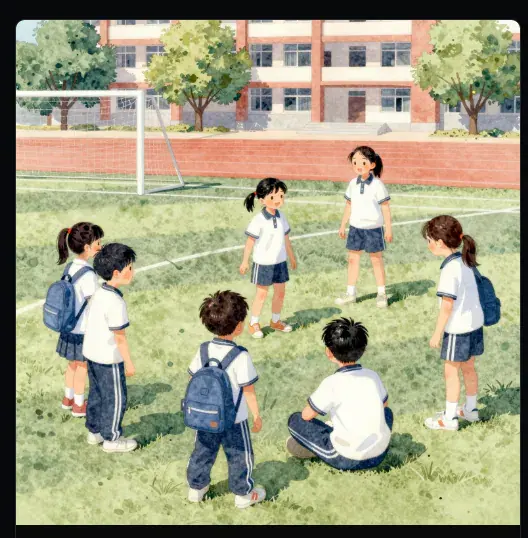
Warm watercolor illustration of students gathered on a school field.

Workflow

3 steps to turn your ideas into results with an AI image generator

  1. 1

    Describe the scene you want to make

    Start by briefly writing down necessary details like the subject, product, background, color tone, and intended use.

  2. 2

    Check styles and settings

    Review the model, aspect ratio, resolution, quantity, style presets, and estimated credits before submitting.

  3. 3

    Review the result and create the next version

    Check the outcome, keep the parts you like, and add only the necessary adjustments to your next prompt.

Use cases

E-commerce Product Images

Quickly compare product shots, background drafts, and thumbnail moods for your detail pages.

Social Media & Ad Assets

Try generating frequently updated visuals like feed images, short-form video covers, and event banners.

Basic Trial Credits

Use the basic trial credits provided to new accounts to check the overall workflow of the AI image generator first.

Drafting Concepts

Visualize illustration moods, character directions, and background concepts to use as a starting point for your next workflow.

FAQ

Is it okay if this is my first time using an AI image generator?

Yes. If this is your first time, simply describe the scene you want in English, check the model and settings, and generate. You can gradually adjust the prompt based on the result and try again.

Can I create free images with the AI image generator?

New accounts are provided with trial credits to check the basic generation flow. Once your credits run out, you can top up as needed to continue using the service.

What are the benefits of uploading a reference image?

When you have a specific composition or mood in mind, a reference image helps set the direction. However, whether this is supported and how much it is reflected depends on the capabilities of the selected model.

Can I just type in English?

Yes, you can start by typing in English. If you need detailed descriptions or precise expressions, we recommend using the prompt enhancement feature as well.